How to Create AI Images: A Beginner-Friendly Guide to AI Photo Generation
Learn how to create AI images with simple prompts, edit results, choose an AI image generator, and use AI photos more safely.
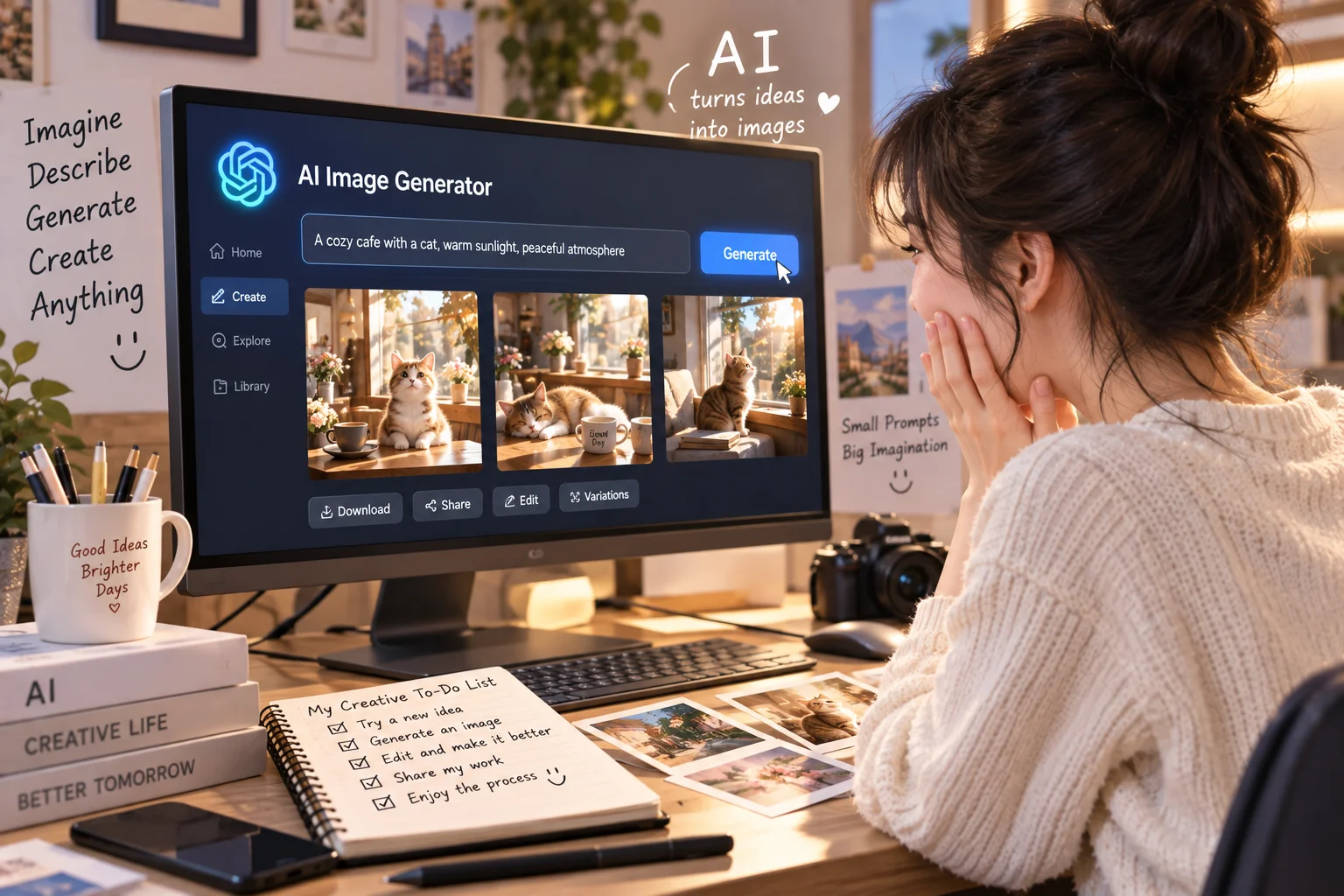
[ This image was created using generative AI ]
How to Create AI Images: A Beginner-Friendly Guide to AI Photo Generation
Features, limits, pricing, and policies can change, so check the provider's current documentation before relying on a specific feature.
AI-generated images are becoming common on blogs, social media, presentations, online stores, and marketing materials.
Yet many beginners still wonder:
Where do I start?
What should I type?
Do I need to write prompts in English?
Can I do this from my phone?
The good news is that modern AI image generation is much easier to use than it may appear.
Services such as ChatGPT, Google Gemini, and Microsoft Copilot can generate images from natural-language descriptions, and they also provide image-editing features in supported experiences.
What Is AI Image Generation?
AI image generation uses generative AI to create a new image based on instructions provided by the user.
A normal image search finds pictures that already exist.
An AI image generator, by contrast, creates an image based on concepts in your prompt, such as objects, colors, backgrounds, lighting, composition, and visual style.
For example:
“A small brown dog walking through a snowy village at sunset.”
The system interprets the concepts in that sentence and generates a visual result that attempts to match your description.
Beginners do not need to understand the complex mathematics behind the technology.
A useful way to think about it is simply:
You describe the picture you want, and the AI tries to create it.
What Do You Need to Make AI Images?
You usually only need:
A smartphone or computer with internet access
An account for an AI image generator
A description of the image you want
A willingness to refine the result
You generally do not need professional design software or a high-end graphics computer because the generation process is handled by the online service.
Can You Create AI Images on a Smartphone?
Yes.
ChatGPT Images is available on the web, iOS, and Android. Gemini is also available through supported web and mobile experiences, while Microsoft offers Copilot experiences on mobile devices as well.
That means you can create an image from your phone by typing something as simple as:
“Create a clean hero image for a blog post about artificial intelligence.”
You can then continue the conversation:
“Make the background brighter.”
“Remove all text.”
“Change it to a square image.”
The Basic AI Image Generation Process
A beginner can follow this simple workflow:
Step 1. Open an AI image generator
Choose a service such as ChatGPT, Gemini, or Microsoft Copilot.
Step 2. Describe the image
For example:
“Create a realistic travel photo of a yellow flower field beside a blue ocean on a clear spring day.”
Step 3. Generate the image
The AI processes your prompt and creates a result.
Step 4. Review it carefully
Check the subject, face, hands, background, product shape, text, lighting, and composition.
Step 5. Ask for changes
You might say:
“Make the sky brighter.”
or
“Keep the person unchanged and replace only the background.”
Step 6. Adjust the format
You can request a square image, landscape image, portrait format, different background, or another visual style.
ChatGPT's current image documentation, for example, supports different aspect ratios as well as conversational editing of generated and uploaded images.
Step 7. Save and use the final result
Before using an AI-generated image publicly or commercially, check the relevant copyright, privacy, and service terms.
How to Use ChatGPT Image Generation
Using ChatGPT image generation can be as simple as typing:
“Create a realistic photo of a strawberry cake on a bright café table. Soft natural window light, warm atmosphere, square format.”
OpenAI's current documentation says ChatGPT Images can create new images and edit existing ones. Users can upload an image and describe an edit, or select part of an image and request a change. Transparent backgrounds and different aspect ratios are also supported.
Image generation is currently available across ChatGPT plans, but free users may have separate usage limits for image creation. Paid tiers can provide higher usage limits or additional capabilities. Exact allowances can change, so the current in-product limit is more reliable than a fixed number quoted in an older article.
How to Create Images with Google Gemini
Gemini also supports natural-language image requests.
For example:
“Create a photorealistic morning scene with a cup of coffee and a small green plant beside a sunny window.”
Google's current Gemini help documentation says users can generate images and refine or edit generated images. Supported users can also upload images and request edits. Some advanced regeneration features are reserved for paid subscribers, while access limits vary according to account and plan.
Gemini supports Korean and many other languages on supported web and mobile experiences.
Can Microsoft Copilot Generate AI Images?
Yes.
Microsoft's official support documentation states that Copilot can generate images from text prompts and can also accept uploaded images for transformation or editing.
Microsoft provides a free personal Copilot experience, while paid Microsoft 365 options can provide higher AI image usage and other benefits. Availability and limits depend on the product and subscription.
What Is an AI Prompt?
A prompt is simply the instruction you give the AI.
This:
“Create a dog photo.”
is already an AI prompt.
However, it gives the AI very little guidance.
Compare it with:
“A cute golden retriever sitting on a sofa in a sunlit living room, warm natural atmosphere, realistic photography, soft window light, square composition.”
The second version tells the AI much more about the desired subject, location, mood, lighting, style, and format.
Do AI Image Prompts Have to Be in English?
No.
Major services support many languages, including Korean in ChatGPT, Gemini, and Microsoft Copilot.
For beginners, it is often better to describe the desired image clearly in the language you are most comfortable using rather than forcing yourself to translate everything into English.
You can still mix in useful visual terms such as photorealistic, close-up, or soft lighting if you find them helpful.
How to Write Better AI Prompts for Images
A simple formula is:
Subject + Action/Situation + Background + Mood + Style + Lighting + Composition + Aspect Ratio
For example:
“A slice of strawberry cake on a white table, soft natural window light, warm and bright café atmosphere, realistic food photography, centered composition, square image.”
Here is what each part does:
Prompt Element | Purpose | Example |
|---|---|---|
Subject | Main focus | Strawberry cake |
Action/Situation | What is happening | Dog sitting on a sofa |
Background | Location | Bright living room |
Mood | Emotional feel | Warm, calm, luxurious |
Style | Visual type | Photorealistic, watercolor |
Lighting | Light quality | Natural window light |
Composition | Camera framing | Close-up, centered |
Aspect ratio | Output shape | Square, 16:9, portrait |
You do not need all eight elements every time.
For most beginner prompts, a few important details are enough. Generate the first version, look at the result, and refine it from there.
AI Prompt Examples You Can Copy
1. Portrait
“A natural portrait of a woman in her 30s sitting beside a bright window, wearing a simple beige shirt, warm modern interior, soft natural daylight, realistic DSLR photography, natural skin texture, upper-body composition, portrait orientation.”
2. Pet Photo
“A cute golden retriever sitting comfortably on a bright sofa in a sunlit living room, happy expression, warm afternoon atmosphere, realistic pet photography, soft natural light, square image.”
3. Food Photography
“A slice of strawberry cream cake on a white ceramic plate beside a small cup of coffee, light wooden table, soft window light, warm café atmosphere, realistic professional food photography, square composition.”
4. Travel and Landscape
“A beautiful spring landscape with a yellow flower field beside a bright blue ocean, clear sky, realistic travel magazine photography, natural vivid colors, wide composition, 16:9 landscape image.”
5. Blog Hero Image
“A beginner creating an image with AI on a laptop, modern clean workspace, bright and friendly atmosphere, realistic photography, leave open space near the top for a blog headline, landscape composition, no text inside the image.”
6. E-commerce Product Image
“A small scented candle centered on a clean white studio table, keep the exact product shape and label design unchanged, soft natural lighting, subtle realistic shadows, premium e-commerce product photography, square image.”
When editing an uploaded product photo, add explicit preservation instructions:
“Do not change the product shape, color, logo, or label. Change only the background.”
What If the AI Image Does Not Look Right?
You do not have to rewrite your entire prompt.
Try a short follow-up request:
Make only the background brighter.
Keep the person unchanged and change only the clothes.
Remove all text from the image.
Convert this to a square image.
Make it look more like a real photograph.
Do not change the product. Replace only the background.
Move the camera farther away.
ChatGPT, Gemini, and Copilot currently support forms of image creation and editing, although editing behavior and preservation accuracy vary by service.
Always inspect the final result carefully.
Can AI Change Only One Part of a Photo?
In supported services, yes.
For example:
“Keep the product unchanged and replace the background with a bright café table.”
or:
“Keep the person's face and hairstyle unchanged. Replace only the background with a bright studio.”
However, generative editing is not always the same as precise pixel-level photo editing.
Small logos, fingers, product labels, facial features, jewelry, and detailed patterns can still change unexpectedly.
If an element is important, state clearly that it must remain unchanged and verify it after every edit.
AI Image Generator Comparison for Beginners
Service | Generate Images | Edit Images | Mobile | Korean | Access Model |
|---|---|---|---|---|---|
ChatGPT Images | Yes | Generated and uploaded images | Web, iOS, Android | Supported | Image generation across tiers; usage limits vary |
Google Gemini | Yes | Generated and uploaded images | Web and mobile | Supported | Free/basic access plus paid plans with expanded features and limits |
Microsoft Copilot | Yes | Uploaded-image transformations and editing | Web and mobile | Supported | Free personal experience plus paid options with higher usage |
There is no single service that is automatically the right choice for everyone.
For a beginner, the easiest starting point is usually the AI service you already use.
Free vs. Paid AI Image Generators
Free access can be enough for learning the basics.
Paid plans may provide differences such as:
Higher usage limits, access to advanced models, higher-resolution output, priority processing, or additional editing tools.
For example, ChatGPT provides image generation to free users but applies tool-specific usage limits. Gemini offers different capabilities and limits depending on the plan, while Microsoft's paid offerings can provide more AI image usage than the free experience.
Because these limits can change, avoid relying on an old article that promises a fixed number of free images.
Privacy: Be Careful When Uploading Real Photos
Before uploading a real photograph, check what is visible in the image.
A photo may accidentally reveal:
Faces
Children's identities
Home interiors
School or company names
Street addresses
Delivery labels
License plates
Identification documents
OpenAI's privacy documentation explains that uploaded images and files can be treated as user content. Eligible personal ChatGPT users can also control whether new conversations are used for model improvement through Data Controls.
Google's Gemini Privacy Hub similarly explains how prompts, photos, files, and other submitted content can be processed, and warns users not to submit confidential information they would not want reviewed or used for service improvement.
Microsoft also publishes specific privacy information about uploaded images and files in Copilot.
A practical rule is simple:
If you would not be comfortable sharing the information with an online service, remove or blur it before uploading the image.
What About Photos of Other People?
Use additional care.
If the photo is not yours or includes another person's face, obtain appropriate permission before uploading, editing, or publishing it.
OpenAI's current service terms state that visual capabilities may not be used to reproduce a person's likeness without express consent and the necessary rights. Google's generative AI policies also prohibit violations of other people's privacy and intellectual-property rights.
Commercial advertising and promotional uses may raise additional legal questions.
What About Celebrities, Logos, and Copyrighted Characters?
An AI tool being able to generate something does not automatically give you permission to use it commercially.
Be particularly careful with:
Celebrities and other identifiable people
Trademarked logos
Famous characters
Copyrighted illustrations
Existing photographs
Brand packaging
A safer commercial approach is to create an original visual concept instead of asking the AI to closely reproduce a protected character or artwork.
Can AI-Generated Images Be Used on Blogs, Social Media, or Online Stores?
Possibly, but check both the service terms and the rights involved in the content.
OpenAI's current consumer terms state that, as between OpenAI and the user and to the extent permitted by applicable law, users retain rights to their input and own the output. The terms also explain that AI output may not be unique and similar output may be generated for others.
Microsoft says it does not claim ownership of content users submit to or receive from its AI services, but users must make their own determination about intellectual-property rights and whether output can be used for a particular purpose.
Google's Gemini documentation tells users to respect copyright and privacy rights and exercise discretion before publishing or using generated content.
This distinction matters:
A service allowing you to use output does not necessarily mean that every generated image has exclusive copyright protection or cannot infringe somebody else's rights.
Who Owns the Copyright in an AI-Generated Image?
There is no single worldwide answer.
Copyright depends on the relevant country's law and, in many jurisdictions, the level of human creative authorship involved.
Korean Copyright Commission materials discuss the importance of human creative contribution and explain that AI-only output without sufficient human authorship may not qualify for registration, while creative human modifications, arrangements, or other contributions may be treated differently.
The Korea Copyright Commission currently provides several official guides covering generative AI, copyright registration, disputes involving AI outputs, and AI training.
The U.S. Copyright Office has similarly stated that generative AI material can receive copyright protection only where sufficient human-authored expressive elements are present; prompting alone may not necessarily establish copyright in the resulting AI-generated elements.
For commercially important work, consult the latest law and terms applicable in your jurisdiction.
Common AI Image Generation Mistakes
1. Writing a prompt that is too short
Instead of:
“Make a café.”
Try:
“A bright modern café with wooden furniture, morning sunlight, calm atmosphere, realistic photography.”
2. Adding too many requirements at once
Start with the most important details, then refine the image in follow-up messages.
3. Forgetting the aspect ratio
Specify square, portrait, landscape, or 16:9 when the intended format matters.
4. Starting over every time
Use follow-up edits such as:
“Keep everything else the same and make the background brighter.”
5. Forgetting to say what must stay unchanged
For product images, write:
“Do not change the product shape, colors, logo, or packaging.”
6. Expecting perfect long text inside an image
AI image models have improved at rendering text, but long or small text can still contain errors.
For important wording, review every character carefully or add the text afterward with a design tool.
7. Ignoring privacy and copyright
Always review images for identifiable people, protected logos, copyrighted characters, and sensitive personal data.
AI Image Creation: Five Things to Remember
1. A prompt is simply your instruction to the AI.
2. Describe the subject, background, mood, style, lighting, composition, and format that matter most.
3. Do not expect the first result to be perfect—generate, review, and refine.
4. Check real photos for personal or sensitive information before uploading them.
5. Before publishing or using AI images commercially, review copyright, privacy rights, and the current terms of the AI service you used.
The most important skill in AI image generation is not technical expertise.
It is simply being able to explain what you want to see.
Start with:
“Create a realistic photo of a cup of coffee in a warm café.”
Then refine it:
“Make it brighter.”
“Use a white table.”
“Make it square.”
After a few attempts, learning how to create AI images becomes much more intuitive.