Dark Photo? How to Brighten and Change Photo Lighting with ChatGPT
Learn how to brighten dark photos and change lighting with ChatGPT using simple natural-language instructions, with practical prompts for portraits, food, products, interiors, and travel photos.
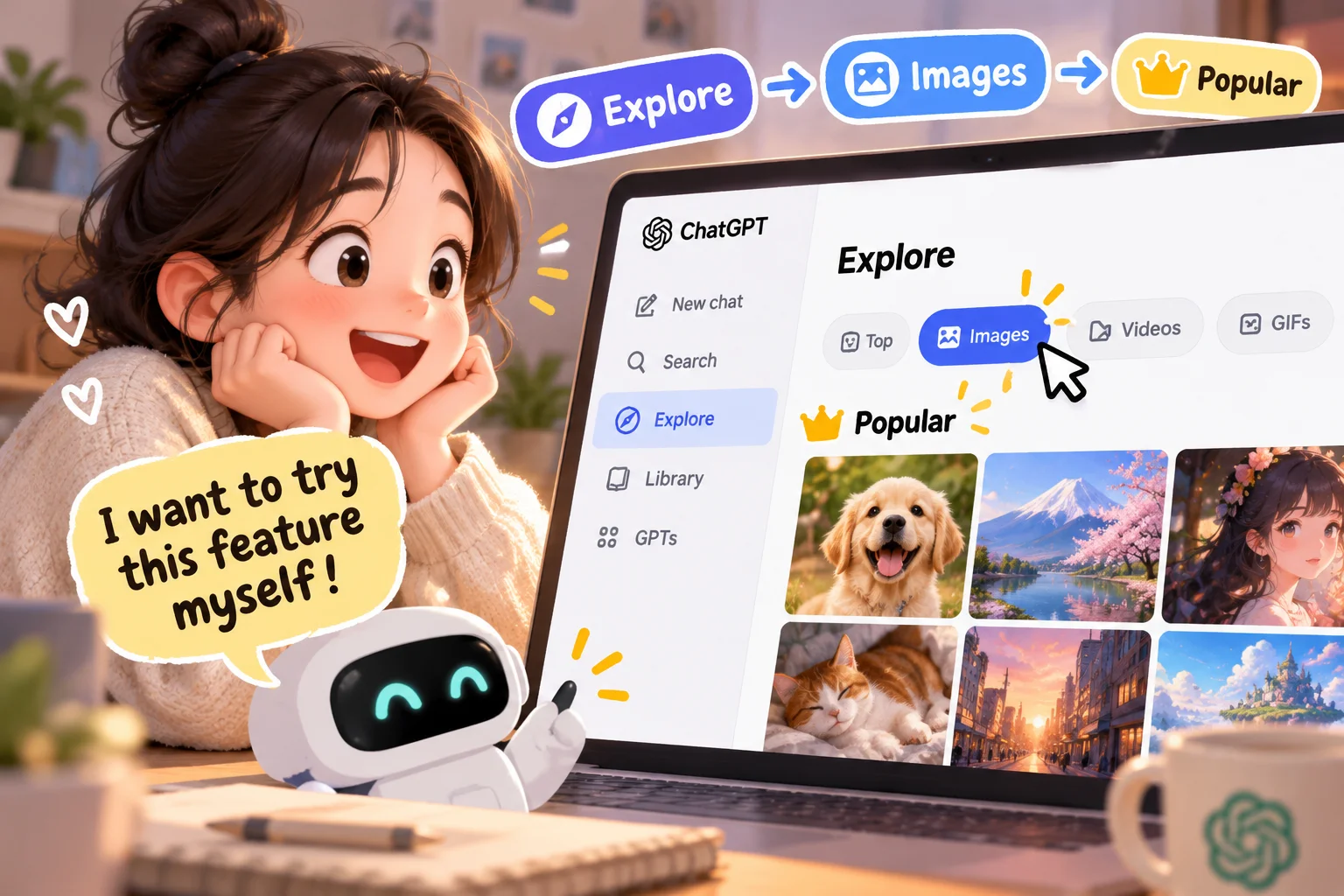
[ This image was created using generative AI ]
Dark Photo? How to Brighten and Change Photo Lighting with ChatGPT
You take a photo on your phone, open it a few seconds later, and realize it looks much darker than the scene did in real life.
Maybe the room was dim. Maybe a bright window behind someone made their face too dark. A nighttime travel photo may look flat and murky, or a food photo may make a colorful dish look dull.
A dark photo does not always mean you need to take it again.
Traditional photo editors let you fix these problems by manually adjusting exposure, shadows, highlights, contrast, and white balance. ChatGPT now offers another approach: upload an existing image and describe the change you want in ordinary language.
According to OpenAI's current documentation, ChatGPT Images can edit existing uploaded images. The feature is available on the web, iOS, and Android, and ChatGPT Images is available across all plans. Free accounts, however, can have stricter usage limits for image uploads and image creation.
Instead of learning what every editing slider does, you can say something like:
“Brighten the shadows on the person's face, but keep the background at roughly the same brightness.”
Or:
“Make this dark room look as if soft daylight is coming through the window, without changing the furniture or layout.”
The important part is knowing how to describe both what should change and what should remain untouched.
Why Use ChatGPT for Photo Lighting Adjustments?
Lighting problems are common because real-life photography rarely happens under perfect conditions.
You might have:
a dark indoor photo
a backlit portrait
a gloomy nighttime photo
a food photo that looks darker than the meal really was
a product photo with weak indoor lighting
a travel photo with an underexposed subject
a photo that needs a little polish before going on a blog or social media
With a traditional editor, you normally manipulate exposure and color controls yourself.
With ChatGPT, you can describe the visual result instead.
For example:
“Keep the person exactly as they are and brighten only the shadows on the face.”
“Make the lighting look like soft morning daylight.”
“Keep the product's original color and shape, but make the lighting look like a clean studio setup.”
OpenAI's own image-creation guidance recommends being explicit about what should change and what should remain fixed. Clear constraints are especially useful when you want a targeted edit.
How Is ChatGPT Photo Editing Different from a Brightness Slider?
This distinction matters.
Changing exposure in a conventional editor and asking generative AI to “make the lighting brighter” are not necessarily the same operation.
Traditional photo editor
A traditional editing app gives you direct controls such as:
exposure
shadows
highlights
contrast
white balance
You are modifying defined image parameters and can often control them numerically.
ChatGPT image editing
With ChatGPT, you describe a desired visual change and the image system interprets the image together with your instruction.
You might say:
“Add soft daylight coming from the left.”
“Brighten the subject without making the sky brighter.”
OpenAI currently supports editing an uploaded image either by describing the edit directly or, where available, by selecting an area and describing what should change.
That makes ChatGPT closer to natural-language generative editing than a simple exposure control.
What Kinds of Photos Work Well?
Dark indoor photos
Useful when the room feels much darker in the photo than it did in person.
Backlit portraits
You can ask to brighten facial shadows while leaving the bright background largely unchanged.
Night photos
You can try bringing out shadow detail while preserving the feeling of nighttime.
Food photos
Lighting can be softened or warmed without intentionally changing the dish itself.
Product photos
You can request cleaner lighting while telling ChatGPT to preserve the product's geometry, color, logo, text, and materials.
Interior photos
You can ask for a brighter room while keeping the furniture and layout intact.
Travel photos
You can balance the person and landscape or create a warmer daylight atmosphere.
How to Brighten a Dark Photo with ChatGPT
Step 1. Upload Your Photo
Add the photo to your ChatGPT conversation.
OpenAI's current image-input documentation says supported interfaces can use the + control to add photos or files. On the web, images can also be dragged into the conversation or pasted from the clipboard.
Interface details can change, so use the image or file attachment option shown in your current version of ChatGPT rather than relying on an old tutorial's exact button layout.
Step 2. Describe the Lighting You Want
You can start with:
“Brighten this photo naturally. Keep detail in the brightest areas and preserve the original colors, composition, and subject as much as possible.”
The key is to specify both the intended edit and the parts that should remain unchanged.
Step 3. Inspect the Result
Do not check brightness alone.
Look at:
facial features
skin tone
background objects
product shape
logos
text
material texture
color accuracy
Step 4. Refine It in the Conversation
If the first result is not right, continue with a smaller correction.
For example:
“Make it slightly less bright.”
“Keep the face exactly as it is and darken only the background.”
“Reduce the yellow cast and make the light more neutral.”
OpenAI recommends small, targeted revisions when refining generated or edited images.
Basic ChatGPT Lighting Prompts
For an overall dark photo
“Brighten the overall photo naturally. Do not blow out the highlights. Preserve the original colors, composition, objects, and subject as closely as possible.”
For a backlit face
“The face is too dark because of backlighting. Brighten only the shadows on the face while keeping the background brightness mostly unchanged. Preserve the person's facial features and natural skin tone.”
For a dark room
“The room is too dark. Make it look as if soft daylight is entering through a window. Keep the room layout, furniture, and objects unchanged.”
For a night photo
“Keep the nighttime atmosphere, but gently brighten the person and the darkest parts of the buildings. Do not turn the scene into daytime.”
Lighting Style Prompts
Specific descriptions usually communicate your intention better than vague requests such as “make the lighting beautiful.” OpenAI's guidance similarly recommends concrete descriptions such as soft natural light from a particular direction.
Soft natural daylight
“Keep the original composition and subject unchanged. Add soft morning daylight coming through a window from the left. Keep the shadows gentle and realistic.”
Warm café lighting
“Keep the scene and objects unchanged, but give the photo warm, comfortable café lighting. Use a subtle warm tone without making the entire photo overly yellow.”
Bright studio lighting
“Keep the product and background composition unchanged. Make the lighting clean, soft, and even like a professional studio setup. Reduce harsh shadows and preserve the product's true color.”
Golden-hour lighting
“Keep the people and scenery in the same positions. Add subtle late-afternoon golden-hour light without making the orange tones excessive.”
Cinematic lighting
“Keep the composition and person unchanged. Create dimensional cinematic lighting, with the face clearly visible and the background slightly darker for depth. Avoid extreme color grading.”
Premium product lighting
“Do not alter the product's proportions, color, logo, text, materials, or design. Change only the lighting to a refined commercial studio setup with soft side lighting and realistic shadows.”
Prompts by Photo Type
Portraits
When editing portraits, clearly describe what must remain consistent.
OpenAI's prompting documentation provides examples that explicitly preserve a person's face, facial features, skin tone, body shape, pose, likeness, expression, and proportions when other elements are being edited.
Try:
“Keep the person's face shape, eyes, nose, mouth, expression, hairstyle, skin tone, body shape, and identity unchanged. Brighten only the dark facial shadows and add soft natural window light. Do not retouch or reshape the face.”
Food Photos
“Preserve the food's actual color, shape, ingredients, and texture. Increase the brightness slightly and add soft natural tabletop lighting. Do not oversaturate the food or change its size or appearance.”
Product Photos
Product images deserve extra checking because brand elements and small details may not remain perfectly consistent across generative edits. OpenAI's image documentation notes that visual consistency for recurring or brand elements can still be challenging in some cases.
Try:
“Keep the product's exact proportions, shape, color, material, logo, text, and decorative details unchanged. Do not redesign the product. Change only the lighting so it looks like a bright, clean studio photograph.”
Interior Photos
“Keep the architecture, furniture, decorations, and object positions unchanged. Brighten the room with soft daytime window light. Do not add, remove, or replace furniture.”
Travel Photos
“Preserve the person, landscape, buildings, and original composition. Brighten the person's face without making the sky unnaturally blue. Create a clear but realistic daytime look.”
Why “Make It Brighter” Is Not Always Enough
This prompt is valid:
“Make it brighter.”
But it leaves many decisions to the image model.
A more useful prompt answers several questions.
What part should be brighter?
How much brighter?
What kind of light should it resemble?
What color temperature do you want?
What must stay the same?
What must not change?
Vague request
“Make this photo look better.”
Better request
“Make the photo slightly brighter and warmer.”
More precise request
“Keep the composition and the person's facial features unchanged. Brighten only the shadows on the face and create soft natural light coming from the right. Preserve the original skin tone and keep the background close to its current brightness.”
How to Fix a Result You Do Not Like
Too bright
“This is slightly too bright. Reduce the brightness and restore detail in the brightest areas.”
The face changed
“The face has changed from the original. Preserve the original face shape, facial features, expression, and skin tone. Change only the lighting.”
Too yellow
“Reduce the yellow cast and use neutral natural daylight.”
Background is too bright
“Keep the subject at the current brightness but make the background slightly darker.”
Product color changed
“Restore the product to its original color and material appearance. Keep the product unchanged and adjust only the lighting.”
Too artificial
“Keep the original photographic texture. Avoid an overly smooth or AI-generated appearance and make only a minimal lighting adjustment.”
How to Preserve the Original Photo as Much as Possible
A practical prompt pattern is:
“Use the original photo as the reference.”
“Change only the lighting.”
“Keep the composition and object positions unchanged.”
“Do not change the person's face.”
“Do not modify the product, logo, text, or color.”
“Do not add or remove objects.”
OpenAI's image guidance specifically recommends separating the element you want changed from the elements you want preserved. Repeating critical constraints during additional edits can also help reduce unwanted drift.
Still, this should not be interpreted as a guarantee of pixel-perfect preservation.
Important Limitations of AI Photo Editing
ChatGPT image editing is generative, so it should not be treated as identical to adjusting an exposure slider in a traditional editor.
OpenAI explicitly notes that editor selections are not always precise and an edit can extend beyond the selected region.
Check important details such as:
facial features
skin tone
hands and accessories
text
logos
product geometry
product color
material textures
small background objects
For images used as evidence, documentation, identity verification, medical records, insurance records, or exact product representations, keep the original file and carefully review any edited version before using it.
Privacy Considerations When Uploading Photos
Before uploading a family or personal photo, check whether it contains information that does not need to be shared.
Examples include:
identification documents
addresses
phone numbers
license plates
school badges
shipping labels
financial information
OpenAI's current privacy documentation treats uploaded images and files as user content.
For personal ChatGPT services, eligible content including images or files may be used to improve models depending on your settings. You can turn off “Improve the model for everyone” under Settings → Data Controls; OpenAI says new conversations after opting out will not be used for model improvement.
Temporary Chat is another option to review for a conversation you do not want kept in normal history. OpenAI states that Temporary Chats are not used for model improvement while temporary, although a copy may be retained for up to 30 days for safety purposes.
ChatGPT vs. Traditional Photo Editors
Category | ChatGPT Natural-Language Editing | Traditional Photo Editor |
|---|---|---|
Main control method | Describe the desired result in words | Adjust sliders, curves, masks, and filters |
Beginner accessibility | Easy to describe an idea naturally | May require learning editing controls |
Numerical precision | May be limited for exact parameter control | Strong direct numerical control |
Mood changes | Describe daylight, café, cinematic, or studio lighting | Use filters or manual adjustments |
Local edits | Natural-language instructions or selected regions | Brushes, masks, and local tools |
Original preservation | Generative changes can affect unintended details | Direct adjustments can offer tighter control |
Iteration | Continue refining through conversation | Change editing values manually |
Logo/product accuracy | Requires careful verification | Basic tonal edits generally offer more direct control |
Neither approach is automatically better.
If you simply need an exact exposure adjustment, a conventional photo editor may be more appropriate.
If you want to say, “Make this room look like soft morning light is coming through the window,” natural-language editing can be much more intuitive.
FAQ
Can ChatGPT brighten an existing photo?
Yes. As of September 13, 2026, OpenAI documents the ability to upload an existing image and describe the changes you want ChatGPT Images to make.
Can I brighten only a face?
You can ask for a targeted change, and supported image-editing interfaces also provide a selection tool. However, OpenAI warns that selections may not be perfectly precise and edits can extend outside the selected area.
Can ChatGPT keep the background unchanged?
You can explicitly instruct it to preserve the background and composition while changing only the lighting. Because this is generative editing, always inspect the result if exact preservation matters.
Can product details change during editing?
They can, which is why logos, text, color, geometry, and small details should be checked. OpenAI notes that image models can sometimes struggle to maintain perfect visual consistency for recurring characters or brand elements.
Can I make another adjustment after the first edit?
Yes. You can continue refining images through the conversation. ChatGPT Images 2.5 also includes improvements in multi-turn editing consistency.
Does it work on smartphones?
Yes. ChatGPT Images is currently available on web, iOS, and Android.
Can Free users use image features?
As of September 13, 2026, OpenAI says ChatGPT Images is available on all tiers. Free users can upload images and create images, although image and file tools have separate usage limits and Free limits can be stricter than paid plans.
Key Takeaway
The most useful habit is not simply telling ChatGPT to make a photo “better.”
Tell it:
what to change
where to change it
how strong the change should be
what kind of light you want
what must remain unchanged
For example:
“Keep the person's face unchanged and brighten only the facial shadows.”
“Keep the product shape, color, logo, and text unchanged and adjust only the studio lighting.”
“Preserve the nighttime atmosphere and brighten only the subject.”
ChatGPT photo editing is best understood as a natural-language, generative approach to image editing rather than a replacement for every conventional photo-editing tool. For quick lighting and mood experiments, however, it can make photo editing much easier to approach.