Create AI Videos with Claude: How to Use Lemo-Opuscar
You can create AI-assisted videos with Claude using Lemo-Opuscar, a filmmaking toolkit built for Claude Code. Instead of asking a video generation model to invent footage, Claude writes code to draw, animate, and render scenes into a finished video. Here is how to set it up and use it for explainers, storytelling, and promotional content.
🎬 Key takeaways
Lemo-Opuscar offers reusable filmmaking styles including watercolor, whiteboard explainers, motion graphics, and documentary formats.
You need Claude Code, Node.js 20+, FFmpeg 7+, and Python 3.11+ or uv.
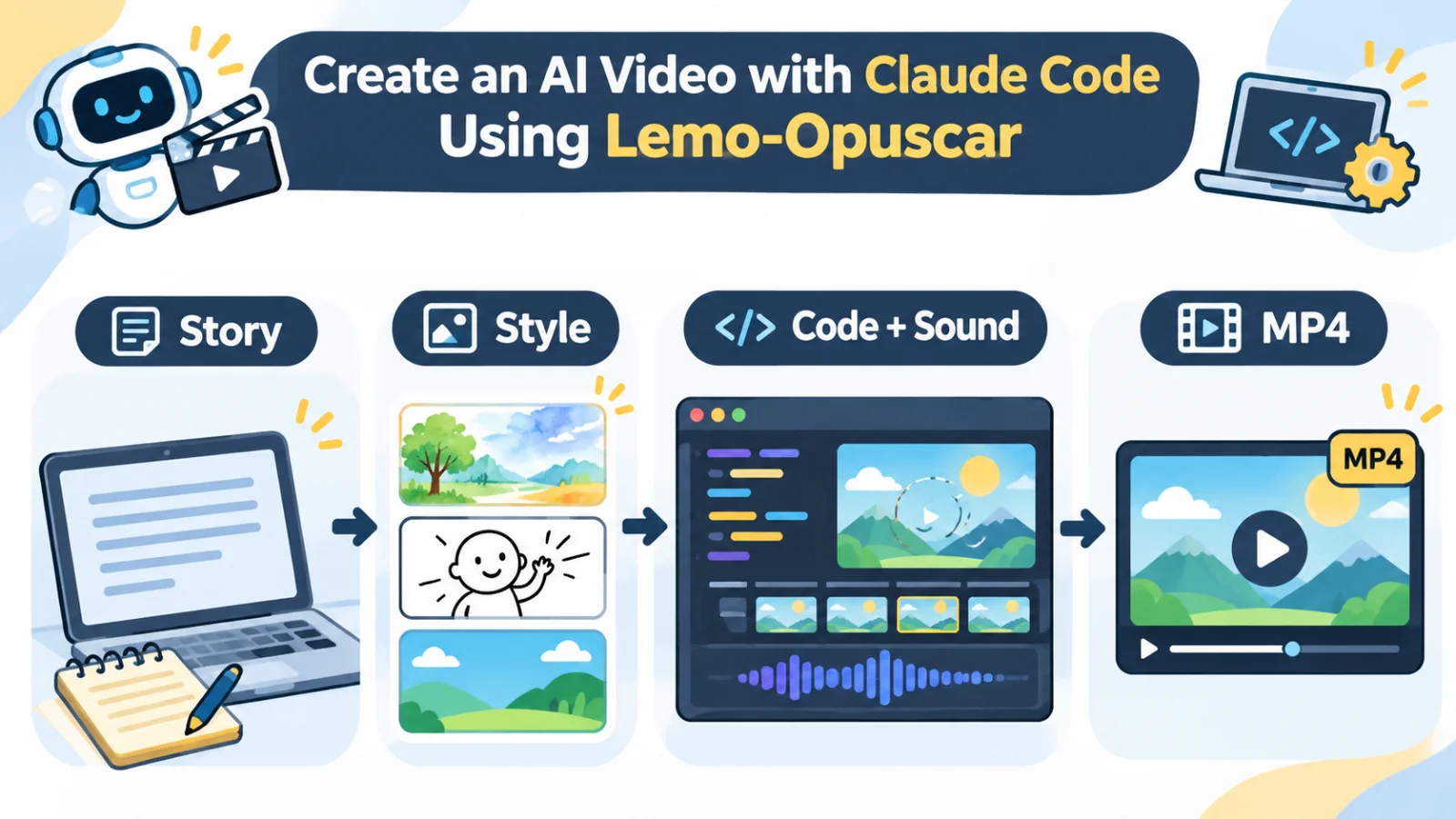
Install the plugin, choose a style, describe your story, and optionally review a storyboard before rendering.
The documented default is 1920×1080 at 24 fps, with other output sizes available on request.
🧩 What is Lemo-Opuscar?
Lemo-Opuscar is a style-driven filmmaking toolkit for coding agents. Claude uses style guides and production instructions to create visuals with Canvas or WebGL, render frames, and combine audio where needed. It is not the same as a conventional text-to-video generator.
Its style library includes hand-drawn animation, graphic explainers, and fact-led documentary treatments. You can start with an existing look or customize one for your own brand, characters, colors, and pacing.
💻 How to install it with Claude Code
Set up Claude Code on your computer first. The project lists Node.js 20 or newer, FFmpeg 7 or newer, and Python 3.11 or newer (or uv) as prerequisites. Your Claude plan and usage limits also matter because video creation can consume substantial tokens.
Run these commands in your Claude Code environment:
claude plugin marketplace add lemomo-ai/lemo-opuscar
claude plugin install lemo-opuscar@lemolab
Then open Claude Code in your preferred project folder. On first use, the tool can download its shared guides and style resources. Your film project files are saved under the working directory.
🎨 Make your first video step by step
Enter /lemo-opuscar:lemo-opuscar to start the guided workflow. Choose your language and style, explain the story, and specify whether you want to see a storyboard first. That preview helps catch problems before full rendering.
For example, a small business could request: “Create a 30-second watercolor-style film introducing a handmade gift. Use warm English narration and show me the storyboard before rendering.” This is a sample prompt, not a guarantee of a particular result.
Review the suggested shots and request changes to timing, text, or narrative focus. Once the video renders, watch the final file to check captions, audio levels, transitions, and visual consistency.
📺 Best uses for creators and businesses
Whiteboard films work well for tutorials and educational concepts. Motion graphics are useful for product features and numerical information, while painterly styles can give brand stories a recognizable personality. Documentary formats may suit reporting based on verified materials.
For YouTube Shorts, Reels, or TikTok, request a vertical output format up front. Check whether titles and subtitles remain readable on a phone rather than assuming a widescreen design will crop neatly.
⚠️ Costs, licensing, and practical limits
The availability of the toolkit's source code does not make Claude Code usage free. Rendering may take time and involve repeated revisions, and results can differ across models. The official styles were tuned for Claude Opus 5.5, so other models may not reproduce the demos as closely.
Before publishing, verify the rights to any added music, imagery, fonts, or voice recordings. Do not assume that the example films and audio assets carry the same reuse permissions as your own finished film.
Start with one 30-second explainer and ask for the storyboard first. Pick a library style that matches your topic, then refine the shots before rendering your first MP4.