Smartphone Privacy Tips Every Teen Should Know
From app permissions and location sharing to social media settings and AI chatbots, here's how a five-minute phone check-up can protect you.
Smartphone Privacy Tips Every Teen Should Know

Has This Ever Happened to You?
You posted a class schedule photo in a group chat, and your school name and after-school academy were visible.
You tapped a "free game items" link, and your friends got weird messages from you.
One photo on your story revealed the street near your home.
All of this can really happen. Your phone holds your photos, friends list, location, search history, and messages. It's basically your whole day in a small box. After reading this, you'll have a few settings you can change in about five minutes.
1. Why Does This Matter So Much for Teens?
① Life happens on your phone. School notices, homework, friends, games, videos, and AI study helpers all live there, so a lot of data piles up.
② Once something spreads, it's hard to take back. Even if you delete a post, someone may already have a screenshot. Your online history can matter later for school or jobs.
③ Scams and bullying need only a little information. A name, school, grade, and a place you often go can be enough to pick you out.
④ Laws exist, but you're the first line of defense. For example, South Korea's Personal Information Protection Act requires a legal guardian's consent to process the personal information of children under 14. Rules help, but your own habits protect you fastest.
2. What Is "Personal Information," Really?
It's any information that can identify you.
Type | Examples |
|---|---|
Obvious | Name, phone number, ID number, face photo |
Identifying when combined | School + grade + class, your regular academy, a name tag on your uniform |
Quietly collected | Location history, search history, app usage |
The key idea: small pieces look harmless, but together they form a full picture of you.

3. Using This in Everyday School Life
📚 Studying
When researching for assignments, prefer sources that don't require you to log in.
In "study with me" photos, keep student IDs, timetables, and report cards out of frame.
👥 With friends
Ask "Can I post this?" before sharing a photo with a friend's face. It's good manners and protects their privacy.
Don't spread screenshots of group chats.
🎮 Games and social media
Keep your real name, school, and birthday out of your nickname.
If a stranger asks "Which school do you go to?" or "Where do you live?", don't answer.
🤖 Using AI
Don't type your name, school, contact info, private photos, or a friend's personal stories into a chatbot.
Each service handles your inputs differently, so the safest rule is not to enter anything you wouldn't want others to see.
If there's an option to turn off chat history saving, check it out.
4. What Would You Do? (5 Real-Life Cases)
Case 1. A flashlight app asks for your contacts
A flashlight has no reason to see your contacts or location. Tap Don't Allow for any permission unrelated to what the app does. If it stops working, find another app.
Case 2. Your food photo has your live location tagged
That's like announcing "I'm here right now." Remove the location tag, and post later after you've left.
Case 3. A text says "Free gift card! Tap here!"
Don't tap. Delete it. If someone offers something free but asks for personal info or a verification code, it's very likely a scam. Never share verification codes. Even a message that seems to come from a friend could mean their account was hacked, so confirm by calling or in person.
Case 4. You want AI to polish your self-introduction
Remove your name, school name, and phone number. Replace "ABC High School" with "a regular high school." Add your real details yourself after you get the edits back.
Case 5. A friend posts an embarrassing photo of you in the group chat
Ask them to delete it first. If that doesn't work, talk to a trusted adult or teacher. If it keeps happening, use the help resources below, and take screenshots as evidence.
5. A Five-Minute Phone Check-Up for Beginners
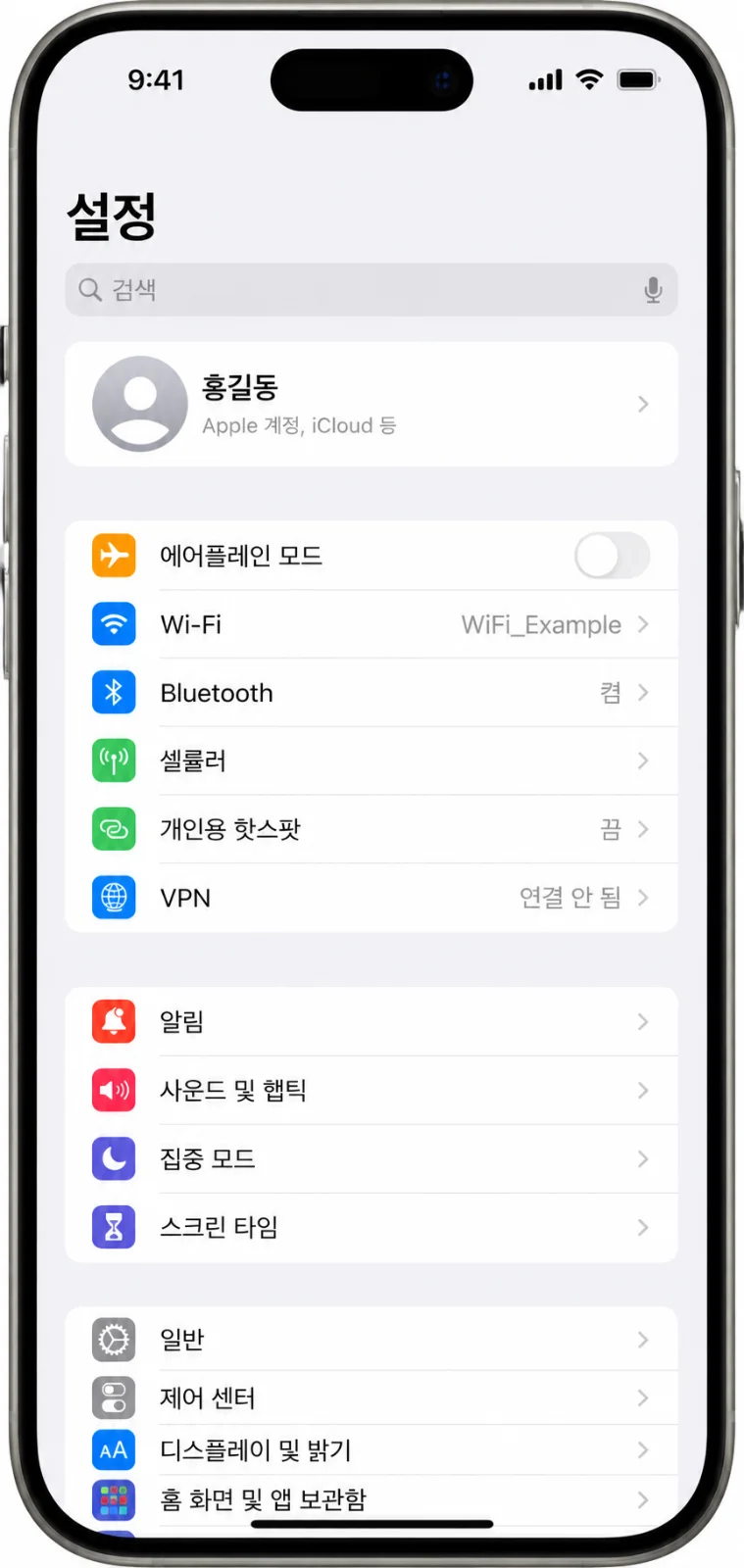
Menu names vary by phone. Try searching "privacy" in the Settings search bar.
✅ 1) Screen lock (1 min)
Use a 6+ digit passcode, or fingerprint/face unlock. Avoid birthdays and 1234.
✅ 2) Clean up app permissions (2 min)
iPhone: Settings → Privacy & Security
Android: Settings → Privacy (or Security & privacy) → Permission manager
Look at Camera, Microphone, Location, Contacts, and Photos. Turn off anything where you think, "Why does this app need that?" For location, "Allow only while using the app" is a good default.
✅ 3) Set social accounts to private (1 min)
On Instagram, X, and similar apps, switch to a private account, and keep followers to people you know. Also review who can tag, mention, or DM you.
✅ 4) Check location data in photos (30 sec)
Photos can store where they were taken. Turn off location tagging in your camera settings, and look for an option to remove location data before sharing.
✅ 5) Turn on two-step verification (30 sec)
Even if your password leaks, others can't get in. Start with the accounts you use most (Google, Apple, social media).
✅ 6) Keep updates on
Security holes get fixed through updates. Turn on automatic updates so you don't have to think about it.
6. Watch Out For
Don't log in or pay on public Wi-Fi.
Don't reuse the same password. A passphrase (first letters of a favorite sentence + numbers + a symbol) is easy to remember.
Don't install apps or files from unknown sources. Use official app stores.
Even if a friend asks, never hand over verification codes or ID photos.
Making or sharing other people's images, like deepfakes or illegal recordings, can be a serious crime. If it happens to you, don't stay silent. Get help right away.
Don't think "I changed the settings, so I'm perfect." Security is a habit.
7. The Short Version
Small details are harmless alone but risky when combined.
Give apps only the permissions they need, and location only while in use.
On social media, go private and turn off location tags.
In AI chatbots, don't enter your name, school, contact info, or other people's private lives.
Never share verification codes or passwords with anyone.
If something goes wrong, save screenshots and ask a trusted adult or organization for help.
Today's mission 🎯 Open your phone's location permissions and switch one app from "Always" to "While using the app." That's the first step.
Note: This post was written in my own words, based on general privacy principles and the official guidance of phone makers and services. Menu names may differ by device and version.