C Drive Running Out of Space? Files You Can Delete and Folders You Must Keep
Running out of space on your Windows C drive? Learn which files can be cleaned up safely, which system folders should not be deleted manually, and how to reclaim storage using Windows' built-in tools.
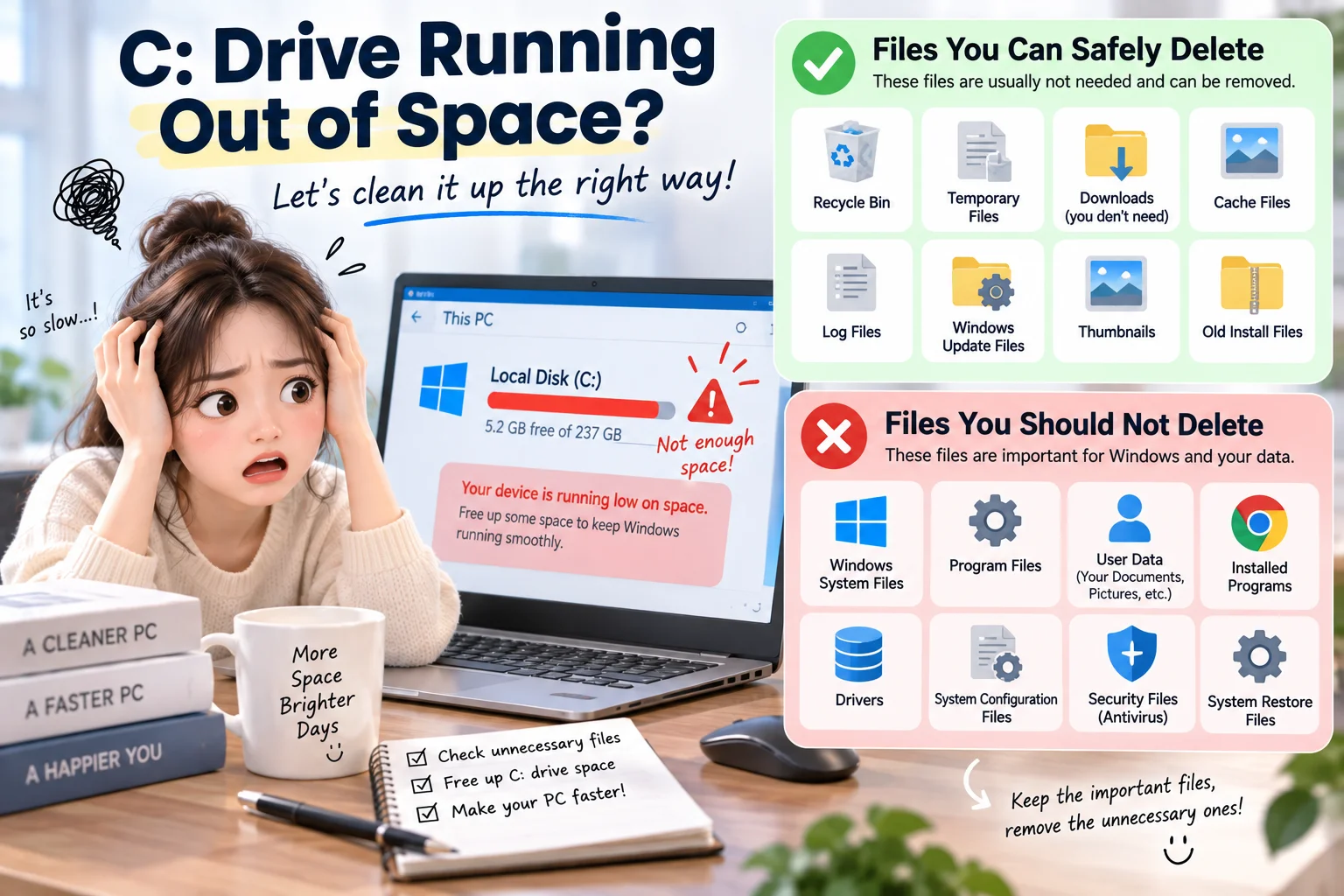
[ This image was created using generative AI ]
If your C drive is running out of space, start with Settings → System → Storage and review Temporary files and Cleanup recommendations. You can often remove unnecessary cache files, empty the Recycle Bin, and uninstall unused apps. But deleting Windows or Program Files folders manually can damage your system. Here is how to tell the difference.
What to know before deleting anything
Check usage first: Open Settings → System → Storage to see what is filling the C drive.
Start with: Temporary files, the Recycle Bin, unused apps, and large personal files you no longer need.
Review carefully: Downloads and previous Windows installations may contain important files.
Do not manually erase: Windows, Program Files, ProgramData, or other system-managed directories.
Find out what is using your C drive
In Windows 11, select Start → Settings → System → Storage. Windows groups storage usage into categories such as Installed apps, Temporary files, and System & reserved. Check the largest categories before choosing a cleanup method.
The System & reserved category is not simply a collection of disposable files. Windows uses some of that space to operate correctly and install updates.
Files you can usually clean up
Temporary files: Open Temporary files in Storage, read the description of each category, and select only items you no longer need. Some caches, including thumbnails, can be recreated automatically. Do not assume every listed item is disposable.
Recycle Bin: Files in the bin still use storage. Review them for anything you need to restore before emptying it. Recovery can be difficult afterward.
Downloads: Old installers and duplicate archives are common cleanup candidates. However, the folder can also contain photos, documents, and important work. Review individual files rather than deleting everything.
Unused apps: Go to Settings → Apps → Installed apps and uninstall software you no longer use. Use the uninstall option rather than deleting an application's folder in File Explorer.
Is it safe to delete Windows.old?
Only remove it if you no longer need to go back to the previous Windows version. The Windows.old folder can contain files required for rollback after an upgrade. Deleting “Previous Windows installation(s)” through Temporary files may remove that rollback option permanently.
If your PC was upgraded recently, confirm your apps and personal files work correctly first. Use Windows' built-in cleanup controls instead of forcibly deleting the folder.
Folders and system files you should keep
C:\Windows contains operating system files. C:\Program Files and C:\Program Files (x86) contain installed application components. C:\ProgramData and the AppData directory inside your user profile can contain essential program data and settings. Do not delete these directories wholesale.
Likewise, avoid manually deleting system-managed files such as pagefile.sys, swapfile.sys, and hiberfil.sys. If you need to change features such as hibernation, use the appropriate Windows configuration method after understanding the effects.
Move large personal files instead of deleting system folders
Videos, photos, and backup archives can consume substantial disk space. Move older files to another internal drive or external storage, verify that the copied files open correctly, and only then remove the originals.
Be careful with synchronized folders such as OneDrive: deleting a synced file can also remove it from other devices. If you only want to recover local disk space, look for the cloud service's “Free up space” or online-only option.
Prevent the C drive from filling up again
Turn on Storage Sense in Settings → System → Storage to let Windows clean selected temporary items and Recycle Bin contents according to your settings. If you enable automatic cleanup of Downloads, choose the retention period carefully so needed files are not removed.
For the safest first action, open Settings → System → Storage → Temporary files, inspect the selected categories, and remove only the items you recognize as unnecessary.