What Is a Passkey? Why Passwordless Sign-In Is More Secure
Passkeys let you log in with your fingerprint or face instead of a password. Here's how they work, and what to watch for.
[ This image was created using generative AI ]
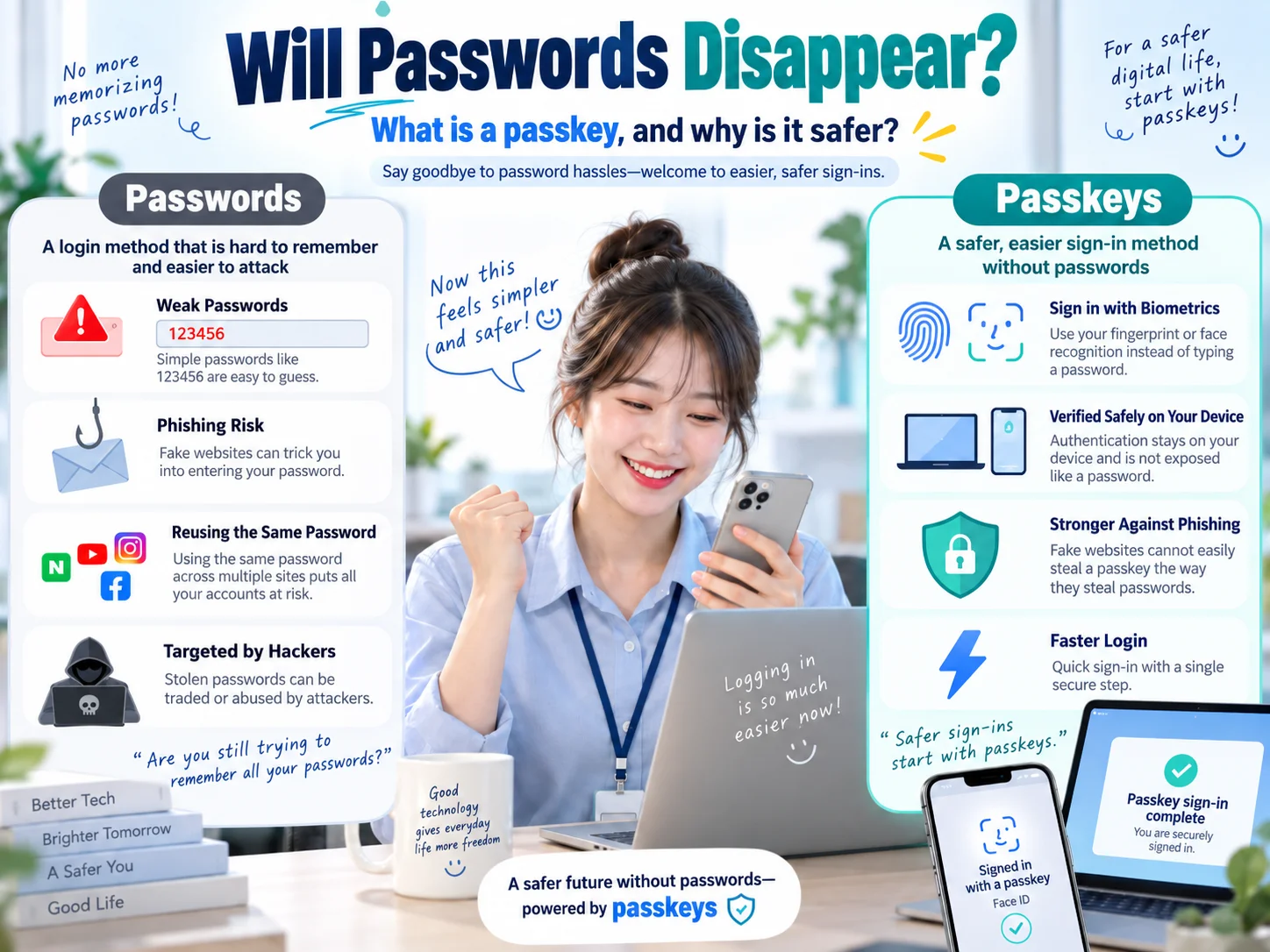
A passkey lets you sign in without remembering or typing a password. Instead, you approve the sign-in with your fingerprint, face unlock, or device PIN. Passkeys are designed to resist phishing and reduce the risks associated with stolen or reused passwords. However, the website or app must support passkeys, and your device security and recovery options still matter.
Key Takeaways
Passkeys use cryptographic keys stored on your device or in a passkey manager instead of a typed password.
Your fingerprint or facial data normally stays on your device rather than being sent to the website.
Each service uses its own credential, avoiding password-reuse problems.
You can usually create a passkey in a supported service's security settings.
Check your sync and account recovery options before losing or replacing a device.
How Is a Passkey Different from a Password?
A password is a secret string you enter and may be tempted to reuse. If it is stolen in a breach or entered on a fake website, attackers may try it elsewhere.
A passkey instead uses a pair of cryptographic keys: a public key and a private key. The website stores the public key, while the private key is protected on your device or by your passkey provider. During sign-in, your private key signs a challenge and the website checks the signature. The private key is not sent to the website.
Why Are Passkeys Resistant to Phishing?
A phishing page may look almost identical to a legitimate website. With passwords, someone can mistakenly type their secret into that fake page. Passkeys are linked to the legitimate site's domain, so a credential registered for one site cannot simply authenticate an imitation domain.
For example, imagine a fake online store copying the appearance of a real store. Your passkey for the real store will not work as a login credential for the impersonating domain. This makes passkeys phishing-resistant, but does not prevent every scam. You still need to assess suspicious payment requests and messages after signing in.
Does the Website Receive Your Fingerprint or Face Scan?
In a typical passkey flow, biometrics are used locally to unlock the credential. The website does not receive your fingerprint or facial scan. You may also use your device PIN or screen-lock password instead of biometrics.
In other words, a passkey is not a system for uploading your fingerprint to every service. Still, someone who can unlock your device may be able to use passkeys on it, so a secure screen lock remains important.
How to Set Up a Passkey
Sign in to a website or app that supports passkeys.
Open the account's security or sign-in settings and look for an option to create a passkey.
Approve the setup using your device's screen lock, fingerprint, or face unlock.
Sign out and confirm that the passkey sign-in option appears when you return.
Exact labels and compatibility depend on the service and device. Some accounts keep password or recovery sign-in methods even after you add a passkey. Creating a passkey does not necessarily remove every older login method.
What Happens If You Lose Your Phone?
Not all passkeys are stored in the same way. Some are encrypted and synchronized across your devices through a passkey provider. Others stay bound to a specific device or hardware security key. With synchronized passkeys, you may be able to restore access on a replacement device. With device-bound credentials, you may need another registered device or the service's recovery process.
Some services also allow cross-device sign-in: a computer displays a QR code, and you approve the login using a nearby phone. When using someone else's computer, be careful not to save a new passkey on that shared device.
What Security Risks Remain?
Passkeys strongly reduce password phishing, but they do not eliminate device theft, weak screen locks, stolen sign-in sessions, or insecure account recovery paths. Remove credentials tied to lost devices where supported, and secure the account that manages your synchronized passkeys.
Start by opening the Security settings of an email or shopping account you use often, then check whether passkeys are available and how you would recover access.